Cloud 9
- Open the Cloud9 console, and click on Open IDE. This will open a cloud-based integrated development environment (IDE) that lets you write, run, and debug your code with just a browser. It includes a code editor, debugger, and a terminal. We will be using it for the rest of the workshop.
Ad blockers, javascript disablers, and tracking blockers should be disabled for the cloud9 domain, or connecting to the workspace might be impacted. Cloud9 requires third-party-cookies. You can whitelist the specific domains.
- Disable temporary credentials:
- In the Cloud9 IDE click the gear icon (in top right corner), or click to open a new tab and choose “Open Preferences”
- Select AWS SETTINGS
- Turn off AWS managed temporary credentials
- Close the Preferences tab
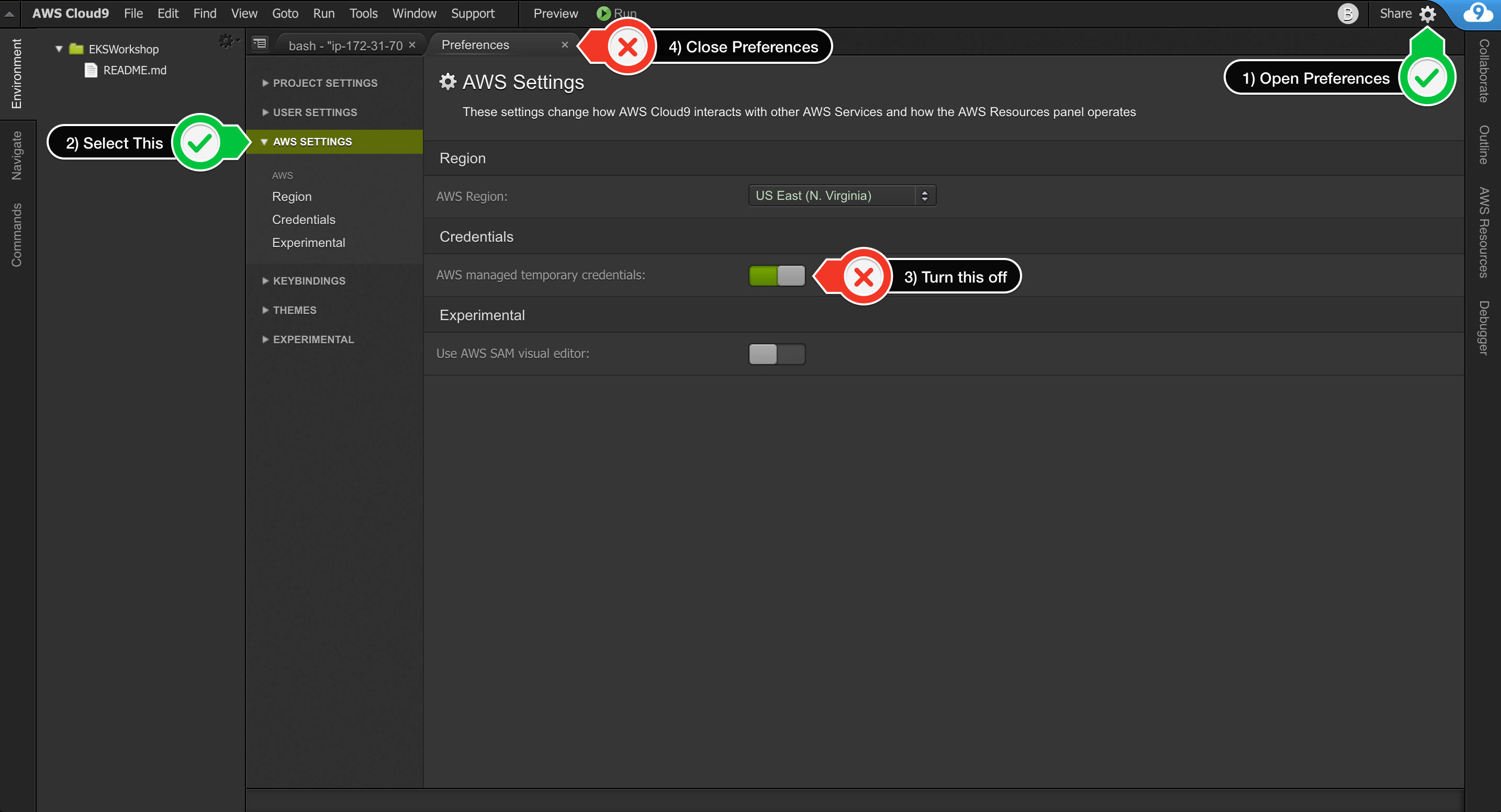
- To ensure temporary credentials aren’t already in place we will also remove any existing credentials file:
rm -vf ${HOME}/.aws/credentials
- Validate the IAM role:
Use the GetCallerIdentity CLI command to validate that the Cloud9 IDE is using the correct IAM role.
aws sts get-caller-identity --query Arn | grep eksworkshop-admin -q && echo "IAM role valid" || echo "IAM role NOT valid"
If the IAM role is not valid, DO NOT PROCEED. Go back and confirm the steps on this page.
- Run the following command to install all the software tools required to run the workshop:
labs/eks/install.sh
The output of the script should show:
Output
- Clone the Workshop Repo:
git clone https://github.com/sorinboia/nginx-experience-aws
cd nginx-experience-aws/